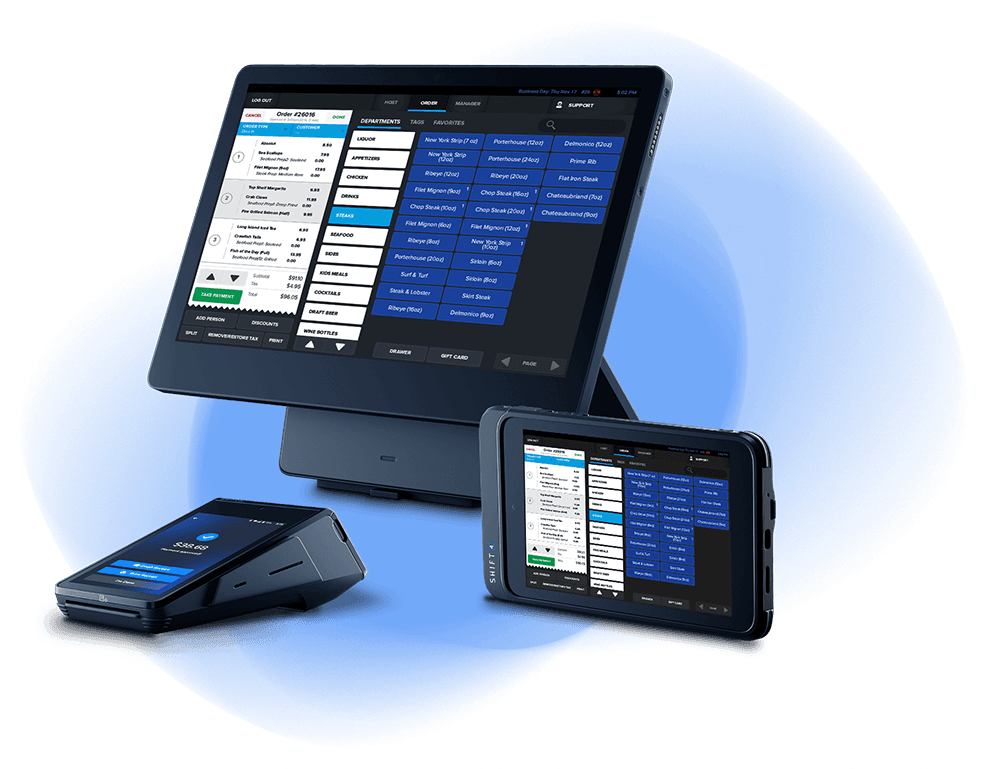
Prepare Your Restaurant for Liftoff

An Operating System for Your Restaurant
SkyTab is more than just a POS system. It's an all-in-one restaurant platform that will help you manage every aspect of your business.


Work Smarter, Not Harder
There’s more to your business than what happens at the point of sale. Your back office command center, Lighthouse, puts you in control anytime, anywhere.
REPORTING & ANALYTICS
Take the guesswork out of business decisions and boost your bottom line.
POINT OF SALE MANAGEMENT
Make changes to your menu on the fly and sync to the POS system.
LABOR MANAGEMENT
Track hours, manage user permissions, and evaluate employee performance.
YOU’RE IN CHARGE
Keep a pulse on your business no matter where you are with the InCharge mobile app.
POS Hardware Designed for Restaurants
With performance and reliability that’s second to none, our modern commercial-grade hardware is designed for demanding restaurant environments — and comes with a lifetime warranty.
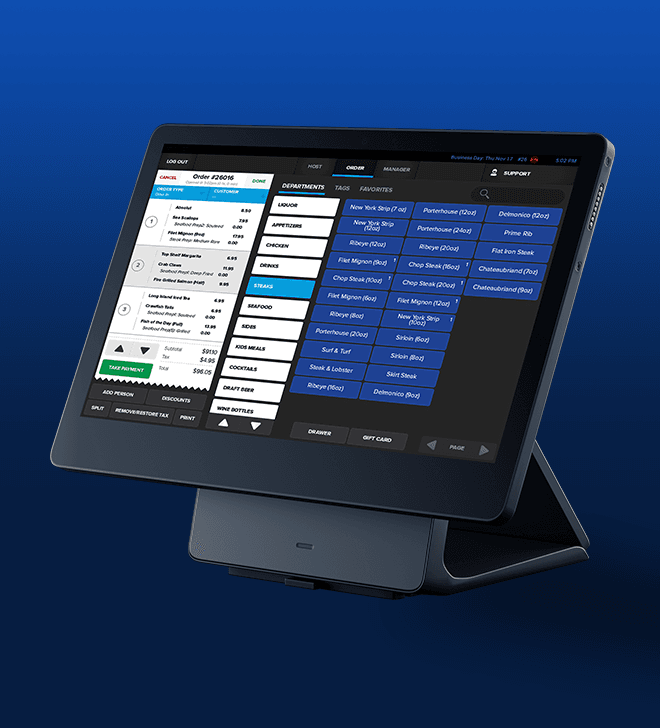
SkyTab POS System
A sleekly designed workstation, powerful performance, and a lifetime warranty.
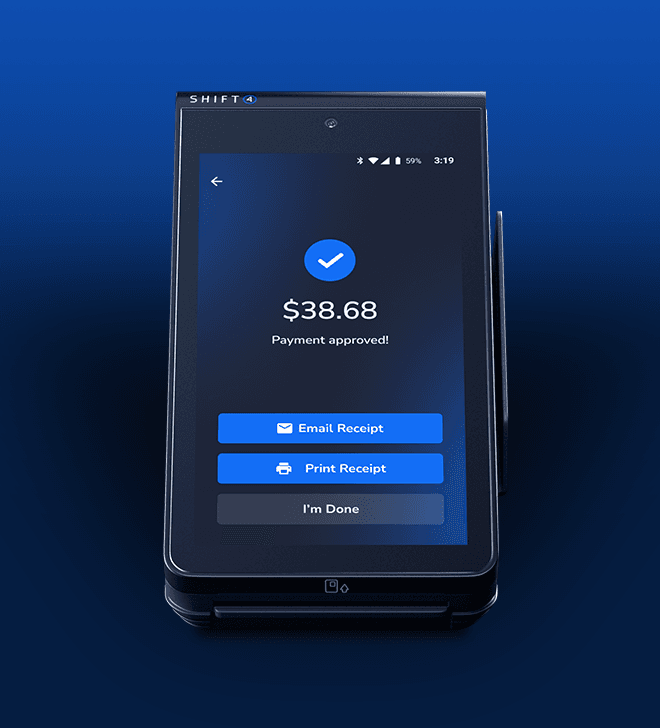
SkyTab Mobile
Accept payments and take orders from anywhere - at the table, curbside, or out on delivery.
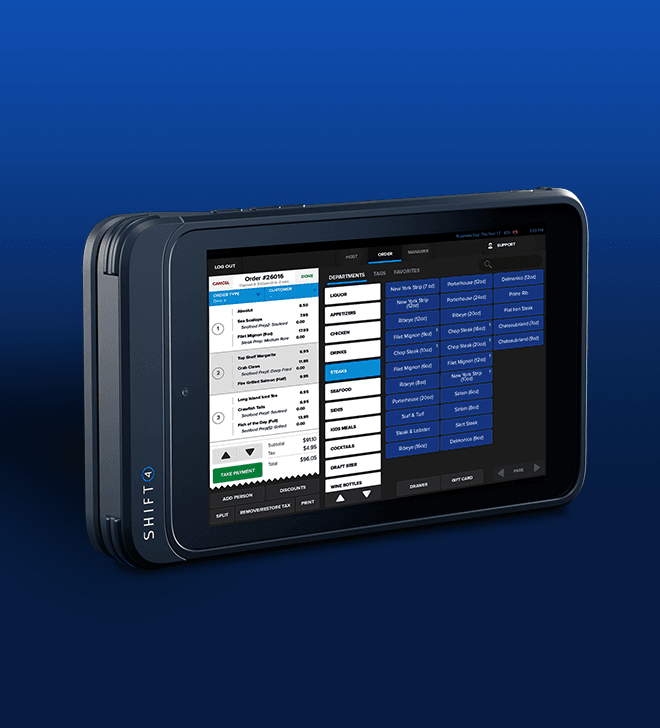
SkyTab Glass
A dedicated tablet app that's optimized for fast and efficient ordering.
SkyTab POS System
A sleekly designed workstation, powerful performance, and a lifetime warranty.
SkyTab Mobile
Accept payments and take orders from anywhere - at the table, curbside, or out on delivery.
SkyTab Glass
A dedicated tablet app that's optimized for fast and efficient ordering.
Powered by Shift4
SkyTab is powered by Shift4, a leading commerce technology company with decades of experience supporting restaurants like yours.
25+
Years in Business
3.5 Billion+
Annual Transactions
$200 Billion
Processed Annually
200,000+
Current Customers
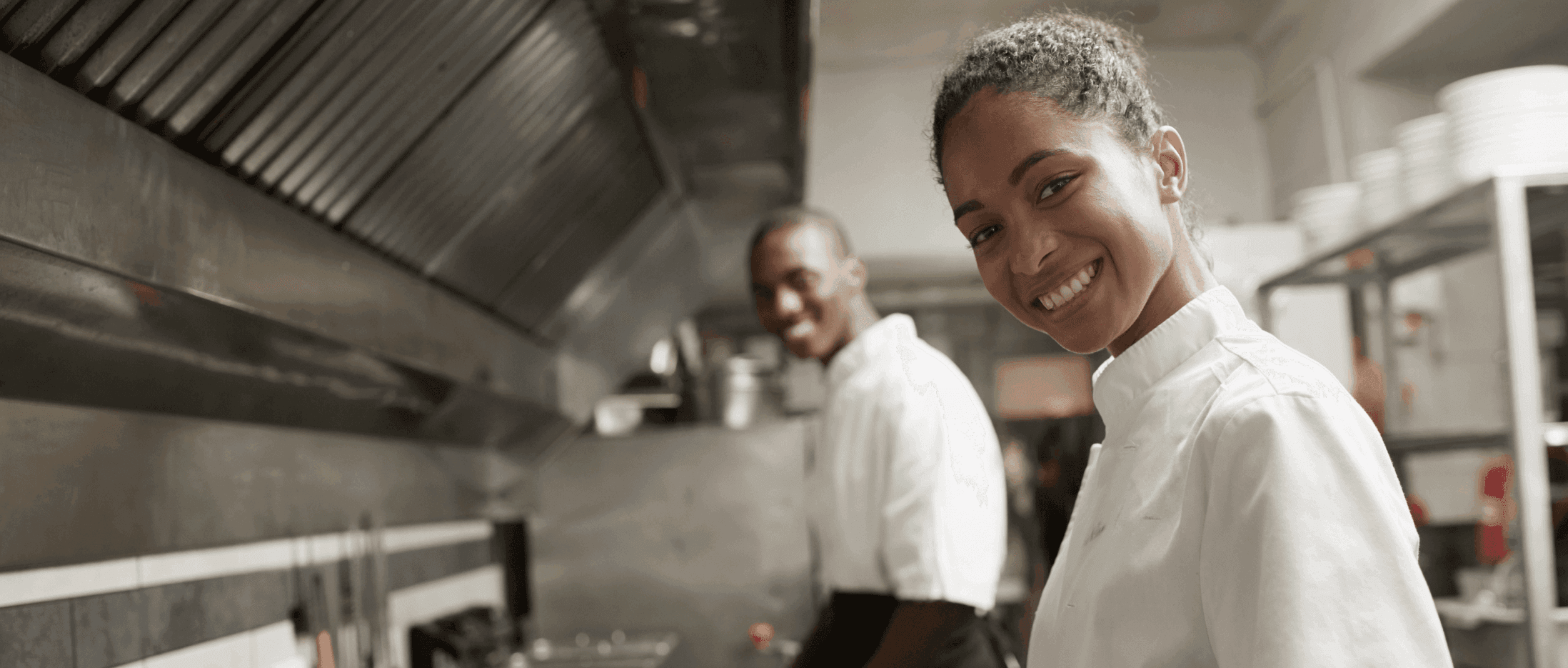
We’ve Got Your Back
Your business isn't 9-5, and neither are we.
24/7 Customer Support
We have you covered with our in-house support team here to serve you 24/7/365.
LOCAL SERVICE & Installation
Onsite installation & service from our nationwide network of certified technicians.
On-demand Resources
Our knowledge base provides a wealth of on-demand information at your fingertips.
Customer Reviews
A few reviews from our thousands of happy customers.
"To say that SkyTab POS is robust is an understatement. It is beautiful, sleek, easy to use, and the reporting is top shelf."
Anthony P.
Shoney's

"I love the integrated online ordering. We also use SkyTab Mobile which really improves the checkout process and helps us turn tables faster."
Bernadette Y.
Lumber Jack Grill

"I'm so glad I ordered this system because it has made a huge improvement to our overall operations."
Glen P.
Alley Dogs